New RBO Update 2026

Follow the evolution of the RBO platform — from its first launch to today’s powerful dealer and mobile ecosystem. Each new version introduces improvements and tools designed to help distributors manage their business more efficiently.

March 2026 RBO Update
RBO v7.0 introduces several new features and improvements designed to make daily business activities easier and faster for Rainbow distributors.

March 2026 RBO Update

We’re excited to introduce the latest RBO update, which includes several improvements designed to simplify daily operations, improve communication with support, and make managing your Rainbow business easier. This release introduces the new Support Tickets tool, allowing distributors to quickly submit and track support requests directly within RBO. The new Rainbow Service module helps manage service-related activities more efficiently. Now You can complete Digital Checklists directly within the platform. (*Coming soon submit CRF/ICL reports with a single click!) The update also includes an improved Surveys design and functionality, along with new dedicated tabs for Leads and Dealer Forms to make important information easier to access and manage. Additional improvements have been made throughout the platform to provide a faster and smoother user experience. Watch the short video tutorials below to learn about the new features and see how RBO v7.0 can help you work more efficiently. These updates are part of Rexair’s ongoing effort to make RBO the central hub for managing your Rainbow business, providing tools, information, and support in one convenient platform.

Introducing new RBO feature: Support Ticket

To improve your RBO experience and ensure better connection with the RBO Team, we are introducing a new feature that allows you to request assistance from the RBO Team whenever you experience an issue or need fixes in your RBO — without WhatsApp messages or emails — all within the same environment: RBO software.

When logged in as Admin role, on the top bar menu you will find a new icon for Support Tickets. Click it and a new pop-up window will open with the Support Tickets grid. By default, it shows the current Year and displays all Open Tickets.

Click the plus sign to create a new Support request to the RBO Team (any Admin can create a new request).

Next to the Username field, you can set Priority: the default is Low, but you can change it to Medium, High, or Urgent based on importance.

Select the RBO Section where you need assistance by typing the corresponding RBO section where you have difficulties, such as Inventory, Sales, Survey definition, Manage, or any other section, then pick it from the drop-down list.

Select Category:

  • “Issue” – if you received a red message or any error message while setting fields during a normal process. For example, you tried to save a new Lead book appointment but received a red error message and the appointment was not saved.

  • “Request” – when you need any correction or additional fix (such as Demo dealer change for an existing Sale, Product serial update, or when SD or RGD requests a new RBO office setup).

Subject: Add the subject of your request.
Description: Add a detailed explanation of your request.

Attachment 1, 2, 3: To better explain your issue or request, we strongly suggest attaching a screenshot and a detailed explanation. You can upload up to 3 files.

After clicking Save, your ticket will be submitted to the RBO Team.

If you realize after saving the Ticket that you have figured it out or the issue does not exist, you can send a reply to ignore the ticket or delete the ticket.

Below is the Ticket Reply grid, where the RBO Team will respond to your request with instructions or resolution details.

Based on the resolution, your ticket will be marked as “In Progress” or “Closed” (see the corresponding grid).

The Status History grid will display all changes related to your Support Ticket.

Every time you create a ticket or receive a reply from the RBO Team, a new automated message will be generated and indicated by the messages badge showing a red number.

If you do not see it, simply refresh your browser.

The new RBO Service Module is a powerful tool designed to help distributors and service centers manage the entire repair workflow. From Service Work Orders and Warranty checks to communication and reporting—everything you need is now in one centralized location.

Part 1: Configuring Your Service

First, you must set up an RBO account for your Service Technician (e.g., “Service Tech John”). Follow these steps:

  1. Navigate to Leads-Contacts.
  2. Click the (+) icon to add a new contact. Select Office Staff as the type and complete the contact information.
  3. Next, go to Manage User Account and select Add New.
  4. Choose your technician, set a username, and select the role Rainbow Service. Set an initial password, then save and close.

Now, log out of your admin account and log back in using the technician’s credentials. Once logged in, you will see Service Shortcut Icons on the Home Screen. You can customize these by opening the left vertical menu and clicking the Star icon next to items like Warranty Report or Settings to pin them to your dashboard.

Part 2: Initial Setup & Settings

To begin your initial configuration, navigate to Settings:

  • Settings Tab: Enter your service information and location. Click (+) to input your Rainbow Service name, address, contact details, and assigned technician.
  • Labor Tab: Use the (+) icon to define your labor types and set default pricing for each.
  • Parts Type Tab: Add categories such as “New Part” or “Refurbished Part” if applicable.
  • Parts Tab: This displays the complete list of replacement parts from the manufacturer, Rexair. Here, you can set your retail pricing. Search by part number or description in the “Rex Name” column.
    • Example: Search for T1140 (Complete Motor Assembly). Double-click the item, click (+) at the bottom, select your service unit, and enter your customer selling price. Save and repeat for other parts.
  • Discounts Tab: Create custom discount types, such as “Repeat Customer” or promotional rates.
  • Payments Tab: Define your accepted payment methods (e.g., Pending, Warranty – No Payment, Credit Card, Wire Transfer, or Cash).
  • Delivery Type Tab: Establish your delivery methods, such as Customer Pick-up, Dealer Delivered, or Shipped via Courier.

Your Rainbow Service module is now fully configured.

Part 3: Managing Service Work Orders

The Work Order section features robust filters at the top, allowing you to search by Date, Customer Name, Serial Number, or Status (Open, Estimate, In Progress, Done, or Completed). At the bottom, you will find real-time totals for labor, parts, and warranty items within your selected timeframe.

We have also included two essential resources for technicians:

  1. Field Service Bulletin: For the latest technical updates.
  2. Service Manual: To identify specific parts. Note: These will open in a new browser tab and require your rainbow.net login.

Option A: Creating a Work Order for Existing Customers

Click (+) to Add New. You can search by Name, Phone, or Email, though searching by Serial Number is recommended. Select the correct result and click Create Work Order, then click Save.

  • Customer Info Tab: Verify the customer’s details. If updates are needed, click the customer’s name (in blue) to open the original Lead Form. Make your changes, save, and close.
  • Product Selection: View the available products, select the unit requiring service, click Add to Work Order, and return to the main Work Order tab.

Defective Product Inspection

In the Products for Service grid, double-click the unit. Enter a brief “Reason for Service” and click Fill Survey for a detailed review.

  • Select the Rainbow Main Unit and note any issues like “Unusual Noise” or “Overheating.”
  • Update the Product Condition, add comments, and Save.
  • Indicate if the product is under warranty and set the expiration date. You can now print the initial Work Order to attach to the physical unit.

Parts & Live Warranty Check

Once the unit is inspected and replacement parts are identified:

  1. Go to the Detail Parts section and click (+ Add New).
  2. Select the product, part type, and enter the part number (e.g., T1140 Complete Motor).
  3. In the right column, select Part or Credit and indicate if the part is from your existing stock.
  4. Enter the Motor Serial Number and select the Motor Reason from the dropdown.

Next, perform a Live Warranty Check.

Note: This provides a preliminary status. Final confirmation is only granted once the Warranty Department issues the formal Warranty Report.

Once the check is complete, a pop-up will display the result. If applicable, mark In Warranty: YES. This ensures the price is calculated for internal tracking but the customer is not charged.

Labor, Approval, and Completion

  • Labor: Add labor entries with estimated duration and types. Mark as “In Warranty” if there is no charge to the customer.
  • Approval: Print the Work Order draft for customer approval. Once approved, set the Estimated Repair Date, check the Approved by Customer box, and update the status from “Estimation” to “In Progress.”
  • Payment & Delivery: Once repaired, add the payment details. Under Products for Service, you can add “Operating Instructions” in the comments field—these will appear on the final printed receipt.
  • Mark the unit as Delivered (including date, time, and method) and Save. The Work Order will now move to the Completed filter.

Part 4: Work Orders for Non-RBO Customers

If a customer is not in your database:

  1. Click (+) Add New and select Add New Customer.
  2. Complete the Lead Form (Name, Phone, Email, Address).
  3. Set the Lead Type to Service and the Lead Dealer to Office.
  4. Click Book Appointment. This activates the Service Work Orders tab for this customer.
  5. In the Work Order tab, click (+) to create the order and manually add the product details (Product Name and Serial Number). Proceed with the standard workflow.

Part 5: The Warranty Report

To finalize your claims, click (+) to create a new Warranty Report.

  1. Fill in the date ranges and your Distributor information.
  2. Click Generate to see a list of all eligible defective items.
  3. Select the necessary rows and click Add to Report.
  4. Click Export to save the report as an Excel file for submission to the Warranty Department.
  5. After your meeting with the Warranty Department, update the report by marking items as Accepted or Rejected.
  6. Finally, mark the report as Validated: YES to lock the file as Read-Only.

Thank you for watching this guide to the RBO Service Module.

For US & CA Customers can digitally confirm and sign documents on Demo from Dealer RBO2Go App enhancing communication and documentation efficiency.

Dealer RBO2GO

So here we are on the dealer’s RBO2Go app.
Here’s the list of today’s appointments for this dealer. Let’s say I’m going to this customer as a dealer.
If I scroll down, I will tap Start when I begin the demo, and I’ll tap End when I finish the demo.

Now I’ll set the result as a sale. Next, I’ll enter how many leads I collected from this customer and check the opportunity offered.
I’ll select that the Rainbow product was sold and I’ll enter the serial number that was demonstrated and sold to this customer. I can fill in all the financial information such as selling price, taxes, and all other financial details. Then I can tap Save and Close. Now here is the factory survey where I can rate the machine that was demonstrated and sold.
We’ll skip this part for now because we’re using a sample serial number. Next, I’ll go to the customer options and tap Create CRF. The system automatically generates the installation checklist and the CRF number created by the RBO. The dealer will explain all these installation checklist terms and conditions for the Rainbow Power Nozzle and the warranty to the customer.
The customer will confirm that they understand by checking all the required fields. After that, the customer will sign the document and click Continue.

Once confirmed and accepted, the PDF is generated and becomes available for download. This is just an example file, and the PDF generated by the system is now ready.
The dealer can go to the customer page under the Document section and click Check Status to confirm the signed file, open it, and copy the download link to send via text message or WhatsApp.Here’s an example of how that message looks. The customer can then save the download link and the PDF to their own device. The dealer can also use the built-in RBO messaging feature to send an email to the customer with the signed PDF attached.
And that’s the dealer side.


Office Side

On the office side, the team can open the appointment, and under the Appointment tab they will find the Documentsection.
From there, the office can download the document or send it to the customer via email or message.

Customer RBO2GO

Finally, if the customer has their own RBO account created previously by the dealer, they can log in to the RBO To Go app.
Under Documents, they will find all documents they have signed with the company, including the installation checklist.

They can open it and save the signed PDF on their device.

• SURVEYS Update 

A cool new feature we’ve added to Rainbow Surveys to make them way more interactive and engaging for your customers.

First, head over to the Survey Definition section in the Admin panel , Surveys definition. You’ll see the two templates we already have set up for you.

Today, we’re focusing on this new section we’ve added called the “Two-Step” feature—you can enable it on any of your existing templates.

Let’s open one up and I’ll show you exactly how to turn it on.

Before we get there, check this out: we’ve added easy ways to upload your own logo or a custom image that appears right on the survey.

For the logo, aim for something around 100 to 300 pixels wide—keeps it crisp without being too heavy. For a custom image, go with about 800×600 pixels for the best look.

Just select your logo file and upload it… done.

Now do the same for your custom picture—upload that one too.

Scroll down a bit, and you’ll spot the new “Step 2” toggle.

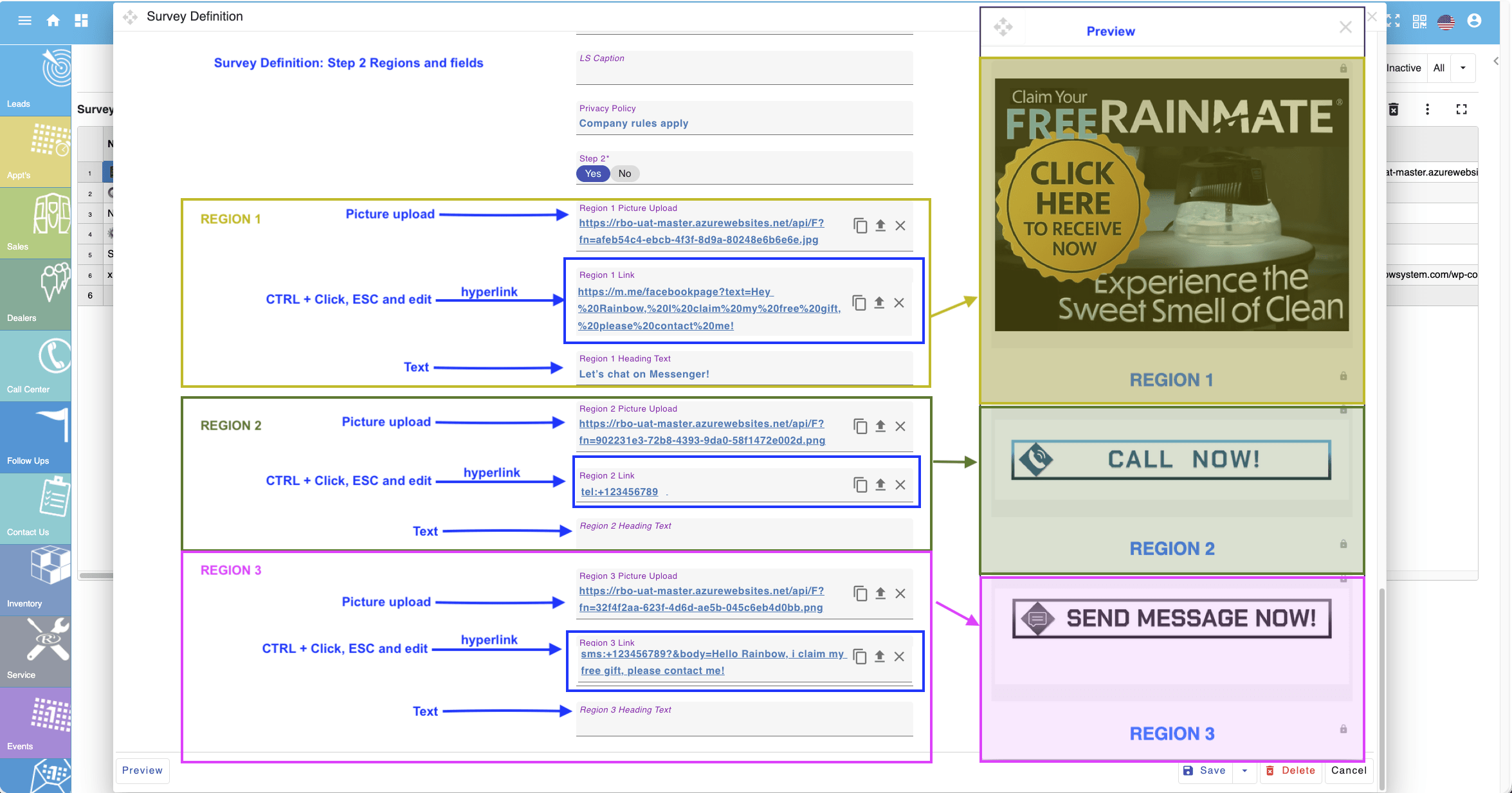
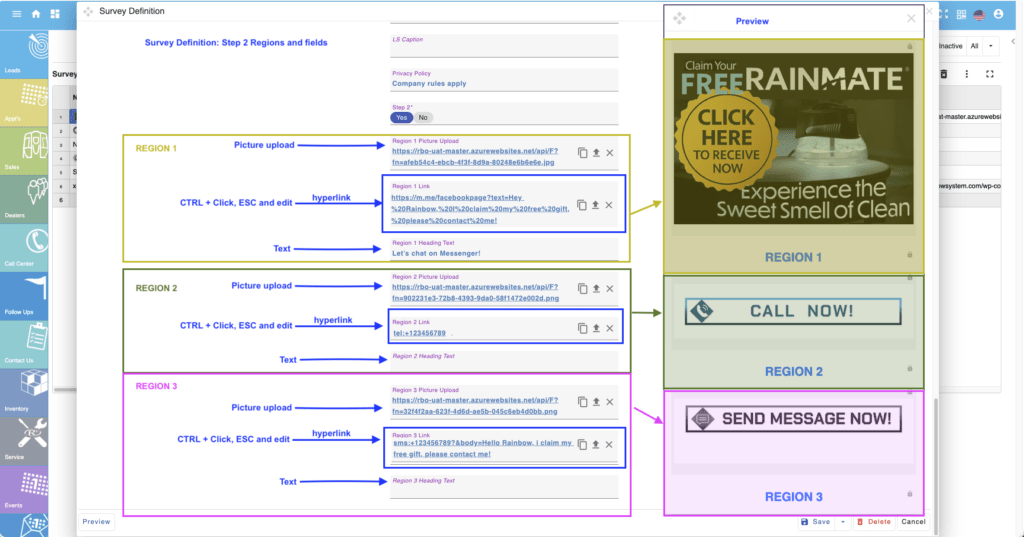
Flip that on, and you’ll unlock three regions: Region 1, Region 2, and Region 3.

Each region has 3 key fields: one for uploading a picture (again, 800×600 recommended), one for the link/action, and one for optional caption text (or heading text) that shows below the image.

For example, in Region 1, this is the picture that pops up in the second step after they submit the main survey. Here’s what it looks like loaded in.

The link field is where the real interactivity happens—this is the action that triggers when someone clicks or taps the image. It can open any URL you want. In our demo here, we’ve set it to a Facebook page link with a pre-filled message in Messenger: something like “Hello Rainbow, I claim my free gift, please contact me!”

You can totally customize that pre-filled text—swap in your business name, your Facebook page details, your marketing phone number, whatever works for you. To edit it, hold down the Ctrl key and click the field with your mouse, then hit Escape to enter edit mode. Use your arrow keys to move around and make changes.

Quick tip for spaces: replace any space with %20 (like Hello%20Rainbow)—it’ll convert to proper spaces when the link opens.

The caption/heading text is optional and shows right below the picture—great for a short call-to-action like “Claim your offer now!” or “Follow us for deals.”

You’ll notice none of this shows in the standard preview—that’s because it’s all tied to Step 2.

To see it live, let’s switch to a dealer profile. I’ll pull up an appointment, go to Customer Options > Survey QR, and grab the one labeled “New Facebook Survey 2 Step.” Click Share and copy the link.

Here’s what the customer sees: your uploaded logo at the top, the custom picture…

They fill out the survey like normal, hit Submit… and boom—Step 2 pops up with those interactive images.

When they tap one, it fires the action: opens Facebook Messenger with the ready-to-go message (just hit send), or it could trigger a phone call, text, WhatsApp, open your website—whatever you set for Regions 2 and 3.

Super smooth way to turn survey feedback into immediate action.

Now, let’s talk about handling those Survey Submissions.

Up on the top blue bar, you’ll see a new icon with a little red badge showing a number—that’s your count of unprocessed surveys waiting for attention.

We built this into RBO to keep new submissions right in your face so you never miss one and can process them fast.

Click the icon, and a pop-up grid appears with all the unprocessed surveys. From here, review them quick, create leads, book appointments.

For security, we’ve completely removed the delete option.

If a submission looks off, you can only reject it.

That’s the full scoop on this update—two-step interactive pop-ups plus better submission handling.
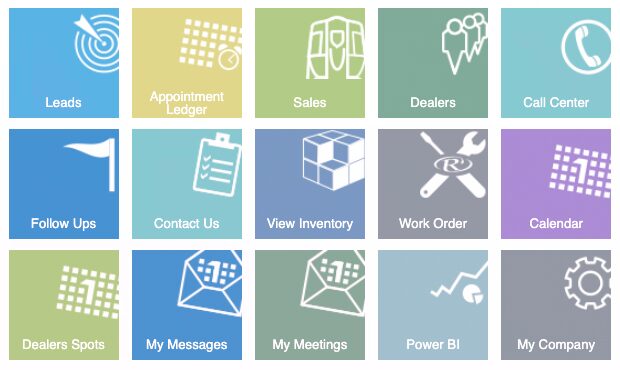
DEALERS – Dealer Form & Groups

Eight new tabs have been added:

  • Dealer Info Tab

    • New Recruiting Type option: College Recruit (improves BI recruiting reports)

    • New field: Promoted by (Distributor Name or RGD Name) – supports the new Promotion History tab

    • If a dealer is set to inactive, an “Active – Yes/No” radio button appears. If set to “No,” the End Date is automatically populated.

  • Appointments Tab

    • Each dealer now has their own Appointment Ledger displaying all results.

  • Recruits Tab

    • Grid displaying all direct recruits (all-time).

  • Products – Consigned Tab

    • Two sub-tabs:

      • Consigned (all active consignments)

      • History (past consignments)

  • Products – Purchased Tab

    • Displays products purchased by the dealer (if also a customer).

  • Received Messages Tab

    • Grid of all messages received by the dealer.

  • Meetings Tab

    • Grid of all meetings attended by the dealer.

  • Promotion History Tab

    • Tracks all promotions, including:

      • Previous position

      • Current position

      • Promotion date

      • Promoted by

  • Notifications and Settings Tab (Admin role only)

    • Enable/Disable notifications, emails, and SMS

    • Username activity log

    • Dealer tab change log


Dealer Groups

In the Dealer Group Form, a new grid has been added below the Group grid to display historical group members, including Start Date and End Date logs.

• SURVEYS Update 

A cool new feature we’ve added to Rainbow Surveys to make them way more interactive and engaging for your customers.

First, head over to the Survey Definition section in the Admin panel , Surveys definition. You’ll see the two templates we already have set up for you.

Today, we’re focusing on this new section we’ve added called the “Two-Step” feature—you can enable it on any of your existing templates.

Let’s open one up and I’ll show you exactly how to turn it on.

Before we get there, check this out: we’ve added easy ways to upload your own logo or a custom image that appears right on the survey.

For the logo, aim for something around 100 to 300 pixels wide—keeps it crisp without being too heavy. For a custom image, go with about 800×600 pixels for the best look.

Just select your logo file and upload it… done.

Now do the same for your custom picture—upload that one too.

Scroll down a bit, and you’ll spot the new “Step 2” toggle.

Flip that on, and you’ll unlock three regions: Region 1, Region 2, and Region 3.

Each region has 3 key fields: one for uploading a picture (again, 800×600 recommended), one for the link/action, and one for optional caption text (or heading text) that shows below the image.

For example, in Region 1, this is the picture that pops up in the second step after they submit the main survey. Here’s what it looks like loaded in.

The link field is where the real interactivity happens—this is the action that triggers when someone clicks or taps the image. It can open any URL you want. In our demo here, we’ve set it to a Facebook page link with a pre-filled message in Messenger: something like “Hello Rainbow, I claim my free gift, please contact me!”

You can totally customize that pre-filled text—swap in your business name, your Facebook page details, your marketing phone number, whatever works for you. To edit it, hold down the Ctrl key and click the field with your mouse, then hit Escape to enter edit mode. Use your arrow keys to move around and make changes.

Quick tip for spaces: replace any space with %20 (like Hello%20Rainbow)—it’ll convert to proper spaces when the link opens.

The caption/heading text is optional and shows right below the picture—great for a short call-to-action like “Claim your offer now!” or “Follow us for deals.”

You’ll notice none of this shows in the standard preview—that’s because it’s all tied to Step 2.

To see it live, let’s switch to a dealer profile. I’ll pull up an appointment, go to Customer Options > Survey QR, and grab the one labeled “New Facebook Survey 2 Step.” Click Share and copy the link.

Here’s what the customer sees: your uploaded logo at the top, the custom picture…

They fill out the survey like normal, hit Submit… and boom—Step 2 pops up with those interactive images.

When they tap one, it fires the action: opens Facebook Messenger with the ready-to-go message (just hit send), or it could trigger a phone call, text, WhatsApp, open your website—whatever you set for Regions 2 and 3.

Super smooth way to turn survey feedback into immediate action.

Now, let’s talk about handling those Survey Submissions.

Up on the top blue bar, you’ll see a new icon with a little red badge showing a number—that’s your count of unprocessed surveys waiting for attention.

We built this into RBO to keep new submissions right in your face so you never miss one and can process them fast.

Click the icon, and a pop-up grid appears with all the unprocessed surveys. From here, review them quick, create leads, book appointments.

For security, we’ve completely removed the delete option.

If a submission looks off, you can only reject it.

That’s the full scoop on this update—two-step interactive pop-ups plus better submission handling.
• Introducing SUPPORT TICKETS

To improve your RBO experience and ensure better connection with the RBO Team, we are introducing a new feature that allows you to request assistance from the RBO Team whenever you experience an issue or need fixes in your RBO — without WhatsApp messages or emails — all within the same environment: RBO software.

When logged in as Admin role, on the top bar menu you will find a new icon for Support Tickets. Click it and a new pop-up window will open with the Support Tickets grid. By default, it shows the current Year and displays all Open Tickets.

Click the plus sign to create a new Support request to the RBO Team (any Admin can create a new request).

Next to the Username field, you can set Priority: the default is Low, but you can change it to Medium, High, or Urgent based on importance.

Select the RBO Section where you need assistance by typing the corresponding RBO section where you have difficulties, such as Inventory, Sales, Survey definition, Manage, or any other section, then pick it from the drop-down list.

Select Category:

  • “Issue” – if you received a red message or any error message while setting fields during a normal process. For example, you tried to save a new Lead book appointment but received a red error message and the appointment was not saved.

  • “Request” – when you need any correction or additional fix (such as Demo dealer change for an existing Sale, Product serial update, or when SD or RGD requests a new RBO office setup).

Subject: Add the subject of your request.
Description: Add a detailed explanation of your request.

Attachment 1, 2, 3: To better explain your issue or request, we strongly suggest attaching a screenshot and a detailed explanation. You can upload up to 3 files.

After clicking Save, your ticket will be submitted to the RBO Team.

If you realize after saving the Ticket that you have figured it out or the issue does not exist, you can send a reply to ignore the ticket or delete the ticket.

Below is the Ticket Reply grid, where the RBO Team will respond to your request with instructions or resolution details.

Based on the resolution, your ticket will be marked as “In Progress” or “Closed” (see the corresponding grid).

The Status History grid will display all changes related to your Support Ticket.

Every time you create a ticket or receive a reply from the RBO Team, a new automated message will be generated and indicated by the messages badge showing a red number.

If you do not see it, simply refresh your browser.


• Introducing RAINBOW SERVICE MODULE

Easily create Service Work Orders for Rainbow units and accessories. With a single click, instantly validate the warranty status of each replaced part.

The new RBO Service Module is a powerful tool designed to help distributors and service centers manage the entire repair workflow. From Service Work Orders and Warranty checks to communication and reporting—everything you need is now in one centralized location.

Part 1: Configuring Your Service

First, you must set up an RBO account for your Service Technician (e.g., “Service Tech John”). Follow these steps:

  1. Navigate to Leads-Contacts.
  2. Click the (+) icon to add a new contact. Select Office Staff as the type and complete the contact information.
  3. Next, go to Manage User Account and select Add New.
  4. Choose your technician, set a username, and select the role Rainbow Service. Set an initial password, then save and close.

Now, log out of your admin account and log back in using the technician’s credentials. Once logged in, you will see Service Shortcut Icons on the Home Screen. You can customize these by opening the left vertical menu and clicking the Star icon next to items like Warranty Report or Settings to pin them to your dashboard.

Part 2: Initial Setup & Settings

To begin your initial configuration, navigate to Settings:

  • Settings Tab: Enter your service information and location. Click (+) to input your Rainbow Service name, address, contact details, and assigned technician.
  • Labor Tab: Use the (+) icon to define your labor types and set default pricing for each.
  • Parts Type Tab: Add categories such as “New Part” or “Refurbished Part” if applicable.
  • Parts Tab: This displays the complete list of replacement parts from the manufacturer, Rexair. Here, you can set your retail pricing. Search by part number or description in the “Rex Name” column.
    • Example: Search for T1140 (Complete Motor Assembly). Double-click the item, click (+) at the bottom, select your service unit, and enter your customer selling price. Save and repeat for other parts.
  • Discounts Tab: Create custom discount types, such as “Repeat Customer” or promotional rates.
  • Payments Tab: Define your accepted payment methods (e.g., Pending, Warranty – No Payment, Credit Card, Wire Transfer, or Cash).
  • Delivery Type Tab: Establish your delivery methods, such as Customer Pick-up, Dealer Delivered, or Shipped via Courier.

Your Rainbow Service module is now fully configured.

Part 3: Managing Service Work Orders

The Work Order section features robust filters at the top, allowing you to search by Date, Customer Name, Serial Number, or Status (Open, Estimate, In Progress, Done, or Completed). At the bottom, you will find real-time totals for labor, parts, and warranty items within your selected timeframe.

We have also included two essential resources for technicians:

  1. Field Service Bulletin: For the latest technical updates.
  2. Service Manual: To identify specific parts. Note: These will open in a new browser tab and require your rainbow.net login.

Option A: Creating a Work Order for Existing Customers

Click (+) to Add New. You can search by Name, Phone, or Email, though searching by Serial Number is recommended. Select the correct result and click Create Work Order, then click Save.

  • Customer Info Tab: Verify the customer’s details. If updates are needed, click the customer’s name (in blue) to open the original Lead Form. Make your changes, save, and close.
  • Product Selection: View the available products, select the unit requiring service, click Add to Work Order, and return to the main Work Order tab.

Defective Product Inspection

In the Products for Service grid, double-click the unit. Enter a brief “Reason for Service” and click Fill Survey for a detailed review.

  • Select the Rainbow Main Unit and note any issues like “Unusual Noise” or “Overheating.”
  • Update the Product Condition, add comments, and Save.
  • Indicate if the product is under warranty and set the expiration date. You can now print the initial Work Order to attach to the physical unit.

Parts & Live Warranty Check

Once the unit is inspected and replacement parts are identified:

  1. Go to the Detail Parts section and click (+ Add New).
  2. Select the product, part type, and enter the part number (e.g., T1140 Complete Motor).
  3. In the right column, select Part or Credit and indicate if the part is from your existing stock.
  4. Enter the Motor Serial Number and select the Motor Reason from the dropdown.

Next, perform a Live Warranty Check.

Note: This provides a preliminary status. Final confirmation is only granted once the Warranty Department issues the formal Warranty Report.

Once the check is complete, a pop-up will display the result. If applicable, mark In Warranty: YES. This ensures the price is calculated for internal tracking but the customer is not charged.

Labor, Approval, and Completion

  • Labor: Add labor entries with estimated duration and types. Mark as “In Warranty” if there is no charge to the customer.
  • Approval: Print the Work Order draft for customer approval. Once approved, set the Estimated Repair Date, check the Approved by Customer box, and update the status from “Estimation” to “In Progress.”
  • Payment & Delivery: Once repaired, add the payment details. Under Products for Service, you can add “Operating Instructions” in the comments field—these will appear on the final printed receipt.
  • Mark the unit as Delivered (including date, time, and method) and Save. The Work Order will now move to the Completed filter.

Part 4: Work Orders for Non-RBO Customers

If a customer is not in your database:

  1. Click (+) Add New and select Add New Customer.
  2. Complete the Lead Form (Name, Phone, Email, Address).
  3. Set the Lead Type to Service and the Lead Dealer to Office.
  4. Click Book Appointment. This activates the Service Work Orders tab for this customer.
  5. In the Work Order tab, click (+) to create the order and manually add the product details (Product Name and Serial Number). Proceed with the standard workflow.

Part 5: The Warranty Report

To finalize your claims, click (+) to create a new Warranty Report.

  1. Fill in the date ranges and your Distributor information.
  2. Click Generate to see a list of all eligible defective items.
  3. Select the necessary rows and click Add to Report.
  4. Click Export to save the report as an Excel file for submission to the Warranty Department.
  5. After your meeting with the Warranty Department, update the report by marking items as Accepted or Rejected.
  6. Finally, mark the report as Validated: YES to lock the file as Read-Only.

Thank you for watching this guide to the RBO Service Module.

Introducing a new feature in the RBO – Digital CheckList 

Dealer Mobile Enhancement:
Customers can complete and sign the Digital Check List (CRF CheckList) directly on Dealer Mobile.

The signed document will automatically be stored in RBO and in the customer’s mobile account. No more paperwork.

The office can also generate a CRF Checklist with an automatically generated CRF number for completed sales and send the checklist link to the customer for signing.

• SURVEYS Update 

A cool new feature we’ve added to Rainbow Surveys to make them way more interactive and engaging for your customers.

First, head over to the Survey Definition section in the Admin panel , Surveys definition. You’ll see the two templates we already have set up for you.

Today, we’re focusing on this new section we’ve added called the “Two-Step” feature—you can enable it on any of your existing templates.

Let’s open one up and I’ll show you exactly how to turn it on.

Before we get there, check this out: we’ve added easy ways to upload your own logo or a custom image that appears right on the survey.

For the logo, aim for something around 100 to 300 pixels wide—keeps it crisp without being too heavy. For a custom image, go with about 800×600 pixels for the best look.

Just select your logo file and upload it… done.

Now do the same for your custom picture—upload that one too.

Scroll down a bit, and you’ll spot the new “Step 2” toggle.

Flip that on, and you’ll unlock three regions: Region 1, Region 2, and Region 3.

Each region has 3 key fields: one for uploading a picture (again, 800×600 recommended), one for the link/action, and one for optional caption text (or heading text) that shows below the image.

For example, in Region 1, this is the picture that pops up in the second step after they submit the main survey. Here’s what it looks like loaded in.

The link field is where the real interactivity happens—this is the action that triggers when someone clicks or taps the image. It can open any URL you want. In our demo here, we’ve set it to a Facebook page link with a pre-filled message in Messenger: something like “Hello Rainbow, I claim my free gift, please contact me!”

You can totally customize that pre-filled text—swap in your business name, your Facebook page details, your marketing phone number, whatever works for you. To edit it, hold down the Ctrl key and click the field with your mouse, then hit Escape to enter edit mode. Use your arrow keys to move around and make changes.

Quick tip for spaces: replace any space with %20 (like Hello%20Rainbow)—it’ll convert to proper spaces when the link opens.

The caption/heading text is optional and shows right below the picture—great for a short call-to-action like “Claim your offer now!” or “Follow us for deals.”

You’ll notice none of this shows in the standard preview—that’s because it’s all tied to Step 2.

To see it live, let’s switch to a dealer profile. I’ll pull up an appointment, go to Customer Options > Survey QR, and grab the one labeled “New Facebook Survey 2 Step.” Click Share and copy the link.

Here’s what the customer sees: your uploaded logo at the top, the custom picture…

They fill out the survey like normal, hit Submit… and boom—Step 2 pops up with those interactive images.

When they tap one, it fires the action: opens Facebook Messenger with the ready-to-go message (just hit send), or it could trigger a phone call, text, WhatsApp, open your website—whatever you set for Regions 2 and 3.

Super smooth way to turn survey feedback into immediate action.

Now, let’s talk about handling those Survey Submissions.

Up on the top blue bar, you’ll see a new icon with a little red badge showing a number—that’s your count of unprocessed surveys waiting for attention.

We built this into RBO to keep new submissions right in your face so you never miss one and can process them fast.

Click the icon, and a pop-up grid appears with all the unprocessed surveys. From here, review them quick, create leads, book appointments.

For security, we’ve completely removed the delete option.

If a submission looks off, you can only reject it.

That’s the full scoop on this update—two-step interactive pop-ups plus better submission handling.

LEADS Section

Lead Form – Lead Info Tab

  • Updated markup fields (Allergies, Children, etc.) now use Yes/No buttons instead of star selections.

  • New Notifications and Settings Tab (Admin role only):

    • Enable/Disable notifications, emails, SMS

    • Username activity log

DEALERS – Dealer Form & Groups

Eight new tabs have been added:

  • Dealer Info Tab

    • New Recruiting Type option: College Recruit (improves BI recruiting reports)

    • New field: Promoted by (Distributor Name or RGD Name) – supports the new Promotion History tab

    • If a dealer is set to inactive, an “Active – Yes/No” radio button appears. If set to “No,” the End Date is automatically populated.

  • Appointments Tab

    • Each dealer now has their own Appointment Ledger displaying all results.

  • Recruits Tab

    • Grid displaying all direct recruits (all-time).

  • Products – Consigned Tab

    • Two sub-tabs:

      • Consigned (all active consignments)

      • History (past consignments)

  • Products – Purchased Tab

    • Displays products purchased by the dealer (if also a customer).

  • Received Messages Tab

    • Grid of all messages received by the dealer.

  • Meetings Tab

    • Grid of all meetings attended by the dealer.

  • Promotion History Tab

    • Tracks all promotions, including:

      • Previous position

      • Current position

      • Promotion date

      • Promoted by

  • Notifications and Settings Tab (Admin role only)

    • Enable/Disable notifications, emails, and SMS

    • Username activity log

    • Dealer tab change log


Dealer Groups

In the Dealer Group Form, a new grid has been added below the Group grid to display historical group members, including Start Date and End Date logs.

Additional System Enhancements

  • Admin – Manage Users
    Added a username search box to the top filters.

APPOINTMENTS Section

Appointment Ledger Updates

  • Totals row now includes calculated: Hold Up %, Closing %

  • Appointment tab renamed from “Open House” to “Opp. Offered” (Opportunity Card offered to customer).

Referrals Tab

  • New default columns for Instant Set and Date Set


MD Board

Added top filters for: Date, Lead Name, LS Name, Dealer, Branch Name, Result


SALES JOURNAL

  • Added Branch top filter (database level).


MY MEETINGS

  • Add Attendees form top filters optimized for more efficient use.


DEALER MOBILE (and RBO2GO app) 

  • Dealer Mobile UI redesigned (Lead entry buttons such as Save, etc.), Appointment form: Qualified status is now read-only for dealer access.

  • Add or Schedule Call feature added below Lead entry;


CUSTOMER MOBILE

  • Redesigned Documents section and Contact section


TECHNICAL UPDATE

This release includes a major upgrade to both our front-end and back-end frameworks and libraries.

We have modernized our technology stack by updating key core frameworks and third-party libraries. This version focuses primarily on technical upgrades to improve system stability, performance, and long-term scalability.